Luke Benjamin

A WordPress chatbot is a small tool on your WordPress site that answers visitor questions for you, day or night. Most are typed chat windows. Some, like Talk Kit, let visitors just talk.
WordPress runs 39.5 percent of all websites, according to W3Techs. So if you own a website, there is a good chance it is a WordPress site. And adding a chatbot to it is easier than most people think.
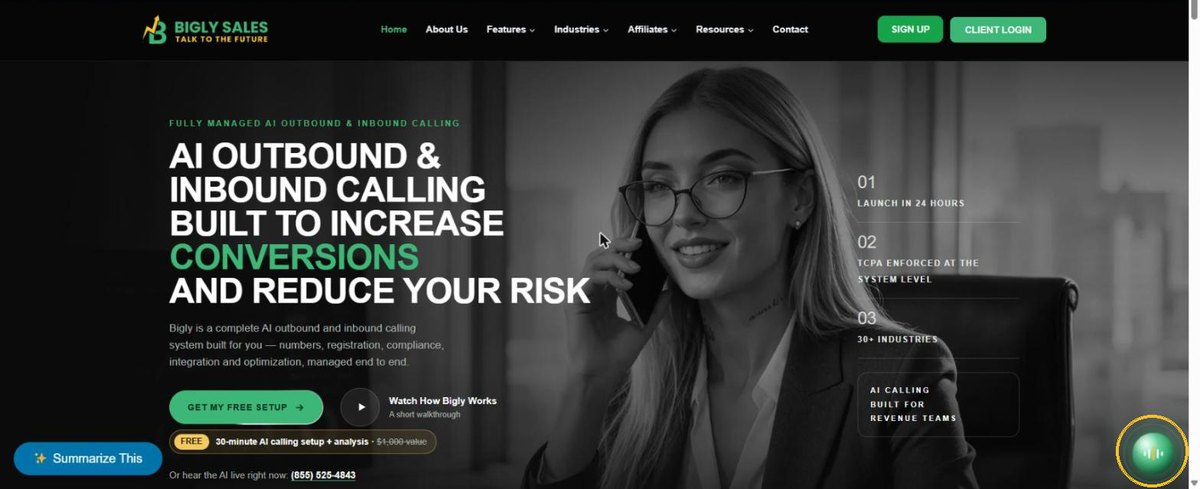
In this guide I will show you the exact way we added Talk Kit to biglysales.com, which is a WordPress site. One free plugin, one line of code, no theme files touched. Talk Kit is built by Bigly Sales, so you should know where my bias sits. The method works for almost any chatbot that gives you a script tag.
TL;DR
To add a chatbot to WordPress, copy the chatbot’s script tag, install the free WPCode plugin, open Code Snippets, then Header and Footer, paste the tag into the Footer box and save. WPCode has more than 3 million active installs on wordpress.org, and the Footer box prints your code just above the closing body tag, where chatbot widgets belong. Then check your site in a private window and clear your cache if the widget does not show. Skip editing footer.php directly, since a theme update can erase it.
Key Takeaways
- Most chatbots install on WordPress as one script tag in the footer.
- The free WPCode plugin is the safest way to paste it. No theme files touched.
- A coding agent like Claude Code, Codex or Cursor can do the whole install for you.
- Never paste the tag straight into footer.php. A theme update can wipe it.
- Always test in a private window. Cached pages are the number one reason a chatbot does not show.
- Talk Kit adds a voice orb instead of a chat box, from $13.99 a month billed yearly.
Table of contents
- What a WordPress chatbot is
- What you need before you start
- Method 1. Add it with the free WPCode plugin
- Method 2. Let a coding agent install it
- Method 3. Use your theme or page builder
- The four ways compared
- How to check it works
- Three problems and how to fix them
- Chatbot plugin or script tag
- Who should skip it
- What it costs
- WordPress chatbot FAQ
- The bottom line
What a WordPress chatbot is
A WordPress chatbot is a widget that sits on your site and answers visitors for you. It usually shows as a small button in a bottom corner. Click it and a conversation starts.
There are two kinds of install.
- A WordPress plugin. You install it from the plugin directory and set it up inside your WordPress dashboard.
- A script tag. The chatbot runs on the vendor’s servers. You paste one line of code into your site and it shows up on every page.
Talk Kit is the second kind. It is also a voice chatbot, not a text one. Visitors click a glowing orb and talk. It talks back out loud. If you have never seen one, here is how a voice chatbot for a website works.
What you need before you start
Five things. Most people already have all of them.
- Admin access to WordPress. Editors and authors cannot install plugins.
- A Talk Kit plan and your code. Pasting a tag does nothing on its own. The code is tied to your account, and Talk Kit has no free plan, so you pick a plan and check out first. You get your code right after. Bigly Sales clients find it in the portal under AI, then Web Calling, then Copy snippet.
- About five minutes. Talk Kit’s own site says about five minutes by hand, or about two with a coding agent.
- Your cache plugin’s name. You will clear it at the end. LiteSpeed, WP Rocket and W3 Total Cache are common ones.
- A backup, if your host offers one. You will not touch theme files, but a backup costs nothing.
Here is roughly what a Talk Kit tag looks like. Yours will have your own address in it.
<script src="https://...your Talk Kit code..."></script>That is the whole install. One line.
Method 1. Add it with the free WPCode plugin
This is the method I recommend for most people. It is the exact way Talk Kit runs on biglysales.com today.
WPCode is a free plugin for adding code to your header and footer. On November 5, 2026 it showed more than 3 million active installs on wordpress.org, a 4.9 out of 5 rating from 1,919 reviews and an update in late October 2026. In other words, it is not some abandoned side project.
Step 1. Install WPCode
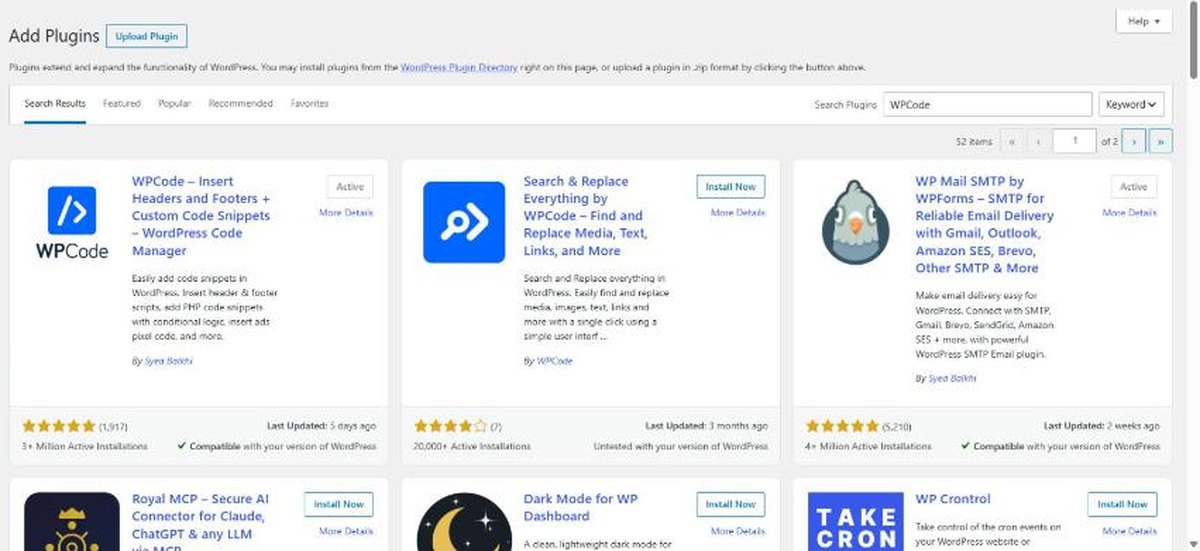
- In your WordPress dashboard, go to Plugins, then Add New Plugin.
- Search for WPCode.
- Find WPCode, Insert Headers and Footers and click Install Now.
- Click Activate.
Step 2. Open the Header and Footer screen
A new Code Snippets menu shows up in the left sidebar. Hover over it and click Header and Footer. You will see three boxes. Header, Body and Footer.
Step 3. Paste the tag in the Footer box
Paste your Talk Kit tag into the Footer box. Not the Header box. WPCode says right under the Footer box that these scripts print above the closing body tag. That is exactly where Talk Kit wants to be.
Click Save Changes in the top right corner.

Why the footer? Because code at the bottom of the page loads after your content. Visitors see your page first, and the orb appears a moment later. Code in the header can hold up everything below it.

Step 4. Clear your cache
If you use a caching plugin, purge it now. Also purge your host’s cache or Cloudflare if you use them. Otherwise some visitors keep seeing the old page without the orb.
Method 2. Let a coding agent install it
Talk Kit was built for this. After you sign up, you get a ready-made prompt with a scoped token. Paste it into Claude Code, Codex or Cursor. The agent adds the tag and sets up the widget through the Talk Kit MCP.
Talk Kit’s site puts the whole thing at about two minutes.
One catch. On WordPress, your agent needs a way into your site, such as your theme files on your computer or access to your server. Many small business owners do not have that set up. If that is you, Method 1 is faster.
Where the agent really shines is after the install. Every setting is a plain English request. Add Jim as a closer. Book appointments after 8 PM. Raise the qualification bar. No dashboard to learn, though a simple one exists if you would rather click.
Method 3. Use your theme or page builder
Some themes and page builders have their own box for custom footer code. Look in your theme’s settings for words like footer scripts, custom code or code injection. If you find one, paste the same tag there and save.
This works fine. The downside is that the code lives inside your theme’s settings. Switch themes later and the chatbot quietly disappears. WPCode keeps working no matter which theme you use.
And please do not paste the tag straight into your theme’s footer.php file. The WordPress developer docs warn that code added to a theme’s own files can disappear on the next theme update. That is why the docs recommend a child theme for custom code. A plugin like WPCode gets you the same safety with none of the setup.
The four ways compared
| Method | Skill needed | Time | Survives a theme update | Survives a theme switch |
|---|---|---|---|---|
| WPCode plugin | None | About 5 minutes | Yes | Yes |
| Coding agent | Agent access to your site | About 2 minutes once set up | Depends on where it puts the tag | Depends |
| Theme or builder code box | None | About 3 minutes | Yes | No |
| Edit footer.php | Some code | About 5 minutes | No, unless it is a child theme | No |
Times are my estimates for a site you already have admin access to, except the coding agent time, which comes from talkkit.ai.
Make your WordPress site talk this week
Paste one line in WPCode and visitors can ask questions out loud. Starter is $13.99 a month billed yearly, with every feature included.
Try Talk KitHow to check it works
Do not skip this. It takes two minutes and catches almost every problem.
- Open your site in a private or incognito window. A normal window may show you a cached copy.
- Look for the orb in the bottom right corner.
- Click it and allow the microphone when your browser asks.
- Ask something only your site can answer, like your hours or your service area.
- Check two or three other pages, including a blog post and your contact page.
- Try it on your phone too. Most of your visitors are probably there.
If it answers with your own details, you are live. Talk Kit reads your site and takes on your tone. Tell it anything extra in plain English, like holiday hours or house rules.
Three problems and how to fix them
| Problem | Likely cause | Fix |
|---|---|---|
| The orb does not show at all | A cached page | Purge your cache plugin, host cache and Cloudflare, then check in a private window |
| The orb shows only after you scroll or click | A speed plugin delays scripts | Exclude the Talk Kit script from the delay JavaScript setting |
| The orb shows on some pages but not others | Page specific caching or a snippet rule | Purge the cache for those pages and check the snippet is set to run sitewide |
Still stuck? Tell the orb or your coding agent. Talk Kit’s support works that way. Every request is logged, and the team reports back the next day.
Chatbot plugin or script tag
Search for WordPress chatbot plugin and you will find plenty of text chatbots. Some are great. Here is the honest difference.
| Question | Typed chatbot plugin | Talk Kit |
|---|---|---|
| How visitors use it | They type | They talk out loud |
| Install | Plugin from the WordPress directory | One script tag |
| Where it runs | Often on your own server | On Talk Kit’s servers |
| Settings | WordPress dashboard | Plain English through your coding agent, or a simple dashboard |
| Hands hot leads to a person | Varies by plugin | Live transfer to your closer’s phone, or books a meeting |
| Payments | Varies by plugin | Takes payment in the conversation through Stripe |
Voice matters most on phones. Typing questions into a chat box on a small screen is a pain. Talking is not.
The bigger difference is what happens after the answer. When a visitor is ready, Talk Kit can ring your closer and connect them live. If nobody is free, it can book a meeting on your calendar. You decide who counts as ready, and here is how to qualify website leads without a form.
Who should skip it
A voice chatbot is not for every WordPress site. Skip it, or wait, if this is you.
- Very low traffic. If you get a handful of visitors a week, you can answer them yourself.
- A visitor base that cannot use voice. Keep a typed option or a short form for people who are deaf, hard of hearing or in a quiet room.
- WordPress.com free plans. Free plans there do not let you install plugins or add your own scripts. You need a plan that allows them, or a self hosted WordPress site.
- Phone first businesses. Talk Kit lives on your website. If your leads call you, Bigly Sales builds voice AI for phone teams.
What it costs
WPCode is free. Talk Kit is paid, and every feature is on every plan. You pay for voice minutes.
| Plan | Per month, billed yearly | Per month, billed monthly | Included minutes | Extra minutes |
|---|---|---|---|---|
| Starter | $13.99 | $19.99 | 100 | 20¢ |
| Growth | $69.99 | $99.99 | 700 | 15¢ |
| Pro | $279 | $399 | 3,500 | 12¢ |
| Scale | $1,399 | $1,999 | 20,000 | 10¢ |
Prices were checked on talkkit.ai on November 5, 2026. Talk Kit estimates Starter’s 100 minutes at 50 to 70 full conversations. Billing is in full minute steps, plans renew until you cancel and canceling takes one click. The speech to speech engine, which sounds even more natural, costs 4 cents more per minute.
WordPress chatbot FAQ
How do I add a chatbot to my WordPress site?
Copy the chatbot’s script tag, install the free WPCode plugin, open Code Snippets, then Header and Footer, and paste the tag into the Footer box. Click Save Changes and open your site in a private window. If the chatbot comes as its own plugin, install that plugin instead. Either way you do not need to edit theme files.
Do I need a plugin to add a chatbot to WordPress?
Not always, but a plugin is the safest route for most people. A footer scripts plugin such as WPCode lets you paste the tag without touching theme files. Some themes and page builders have their own custom code box, which works too. Editing footer.php directly also works until your next theme update, which can wipe it.
Where do I put the chatbot code in WordPress?
Put it just above the closing body tag, which is the footer area of your site. WPCode’s Footer box prints code in exactly that spot. Putting it in the footer means the chatbot loads after your page content, so it does not slow down the first thing visitors see.
What is the best chatbot for WordPress?
It depends on what you want it to do. A typed chatbot plugin suits visitors who prefer to read and type. A voice chatbot suits mobile visitors and people who would rather ask out loud. If you want leads handed to a person live, check that the tool can transfer calls or book meetings, not just answer questions.
Is there a free chatbot for WordPress?
Yes, several text chatbot plugins have free versions with limits on features or messages. WPCode, the plugin used in this guide, is free. Talk Kit itself is paid and starts at $13.99 a month billed yearly with 100 voice minutes. Compare cost per useful conversation, not just the sticker price.
Can I add a voice chatbot to WordPress?
Yes. A voice chatbot installs the same way as a text one, usually as a single script tag in the footer. Talk Kit puts a talking orb on your site. Visitors click it and speak, and it answers out loud in English or Spanish from your own site content. It works on any WordPress site that can hold a script tag.
Will a chatbot slow down my WordPress site?
A well built widget should not slow the first view of your page much, because it loads at the end. In the footer, the browser builds your page first and the orb appears a moment later. Test your speed before and after with a free tool such as PageSpeed Insights and compare the numbers yourself.
Why is my chatbot not showing on my WordPress site?
The most common cause is a cached page. Clear your caching plugin and your host’s cache, then check in a private window. Next, check whether a speed plugin delays scripts until the visitor scrolls or clicks. Finally, make sure you clicked Save Changes in WPCode and that the snippet is not limited to certain pages.
Does a WordPress chatbot work with Elementor?
Yes. Elementor builds your pages, but the footer code still loads through WordPress itself. A tag pasted in WPCode’s Footer box shows on Elementor pages too. Bigly Sales runs Elementor on biglysales.com and installed Talk Kit through WPCode, and the orb shows on every page.
How do I remove a chatbot from WordPress?
Open WPCode, go to Code Snippets, then Header and Footer, delete the tag from the Footer box and click Save Changes. Clear your cache and the chatbot is gone. If you also want to stop billing, cancel your Talk Kit plan, which takes one click. Removing the code alone does not cancel the plan.
The bottom line
Adding a chatbot to WordPress is not a developer job anymore. Install WPCode, paste one line in the Footer box, save and test in a private window.
Skip footer.php. Clear your cache. And check it on your phone, because that is where most of your visitors will talk to it.
One line of code. A website that talks back.
Sign up, paste the tag in WPCode and ask your site a question out loud. Every feature is included, and you can cancel in one click.
Get Talk Kit